Showing posts with label or. Show all posts
Showing posts with label or. Show all posts
Friday, October 10, 2014
Cut or Convert Audio Video Files Using VLC !!

Well, actually this is not very surprising if youre already familiar with this technique. To be honest, I didnt know about it few days ago.
In fact, the conversion and cutting option of VLC is almost hidden. So I cant blame myself as I didnt know about it. Only a few days ago Id come to know about the process.
In this post Im gonna show you how to cut or convert a video or audio files using VLC Media Player.
To cut a video or audio follow the steps below:
1. Play the audio or video file you wanna convert.
2. Then go to the View menu and choose Advanced Controls.
3. Now youll find some additional controls at the bottom of the player.

4. Here is a round red button. This button can be used to record the audio or video file.

5. Click on this Record button to start the record and click again to stop the recording.
6. Now find the recorded file in the User > My Videos or Music. If youre running
Windows 7 or 8 then go to the Libraries > Videos or Music.

If you directly wanna convert a file then follow these steps:
1. Open VLC Media Player.
2. Then click on the Media Menu and Choose Convert/ or Save.
3. Now click on the Add button to choose your desired audio or video.

4. Then choose a location for the output file and give a name from the destination.

5. Now select the output format from the profile option and click on Start button.
Stay with Marks PC Solution to get more interesting IT topics!

Tuesday, October 7, 2014
How to fix format error not a PDF or corrupted
Two days back, I have received an email with PDF file attachment. When I tried to open PDF file, it shows an error message which says: "format error: not a PDF or corrupted"
I was surprised to see such error message and thought hope it was not a virus file as attached PDF. Immediately I have called to my friend who is expert in handling PDF file error matters. My friend suggested me it may not be virus file. It could be possible that PDF file got corrupted so he suggested me to open PDF file in foxit PDF reader which is an alternative of adobe reader then I install the foxit pdf reader, & try to open "corrupt" pdf files.
When I tried to open it in foxit reader, again it shows same error message.

There is a chance that the problem was caused by the latest update of Foxit Reader then I uninstalled Foxit Reader and then reinstalled but the error still remain same.
As the error message indicates that the PDF file get corrupted that is why I decided to download again another copy of PDF file, but when I opened it, same problem occurred.
After doing lots of research I found that the error message can be occur due to three reasons:
1. either by the network
2. Browser Issue
3. by the corrupted file itself.
To resolve this issue, Try to download the file with a better network.
I recommend you to first clear your browsers cache and temporary internet files to make sure that they are not causing your issue. If this is not resolve the issue, please use different browser.
Corrupted PDF file could be a result that you did not complete download the whole PDF file or you have downloaded a corrupted PDF file. The best solution is to downloaded another PDF file or try repairing the installed PDF by going to start – control panel – add/ remove programs – on the PDF file right click and select change this will repair the PDF file.
In case if nothing works then you should use advance PDF Repair Software. These software repairs corrupt PDF files after all corruption errors.
Hope these solution will help you to resolve this error!!!
Monday, September 29, 2014
Zip Repair or RAR File Repair Solution for an Error “This is not a valid win32 application”
WinZip and WinRAR are the most important and widely used software to compress file. These tools have excellent compression capabilities due to this WinZip and WinRar are most in the demand from all over the Globe. Once we compress the files then we can get more storage space in the hard disk. User can send large files as attachment through email very easily after compressing the large file with WinZip and WinRAR tools. But sometimes these compressed files get corrupt due to several reasons and users get few errors while accessing compressed .zip or .RAR files. To repair these corrupted Zip files it is important to use Zip Repair tools.
Cause: There are several reasons due to which compressed files (.zip or .rar) may get corrupt few are as follows:
- Due to virus attack
- Improper System Shutdown
- Improper Download etc.
If zip files affected by any of above written reason then it is possible to face these written errors.
- "Cannot open file: it does not appear to be a valid archive"
- "This is not a valid win32 application or Corrupt Zip file"
- "CRC Errors"
Solution: To solve above written errors user can try Inbuild Repair Utility of WinRAR. But this repair utility works when compressed file is not heavily damaged.
Here I am sharing few important steps to repair .ZIP/.RAR files using WinRAR:
- Open WinRAR and browse to the folder with your .rar/.zip file.
- Highlight the file and click the Repair button from the tool bar.
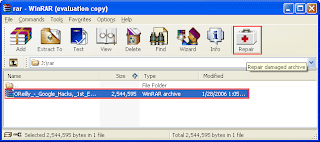
- Now a popup windows will appear which have two options, select “Treat the corrupt archive as ZIP" or “Treat the corrupt archive as RAR” depending which type of archive you want to repair.
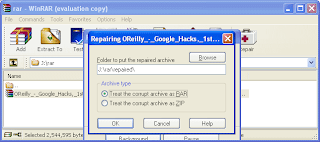
- You may get a "Suspicious Entry" pop-up. If so, select all. This may happen several times while repairing.
- Click on Close, after WinRAR has completed repairing the archive.
- To extract your file, highlight your new rebuilt archive.
- Next select Commands > Extract without confirmation
- The files will start extracting.
- The archived files will be extracted to the specified folder as the repaired archive.
Sunday, September 28, 2014
How to Install or Uninstall Fonts in Windows
By default Windows Operating Systems include some essential fonts. Which you can use for any kind of writing. Though there are many English fonts but you may not have your local fonts. Or you may not have necessary stylish fonts installed with your Windows. In that case you can easily install new fonts if you need.

Those who already know how to install fonts may think- this post is quite unnecessary. But Ive to write because many of you cant install fonts. Im gonna show the easiest way to install new fonts on Windows PC. Hopefully this will work for all running versions of Windows.
- First go to the folder where your necessary fonts are stored.
- Select the fonts (Ctrl + A) and copy them by pressing Ctrl + C.
- Now Press Start + R to open Run, then type Fonts and hit Enter.
- Here you will see all the fonts installed on your PC.
- Press Ctrl + V to install the fonts you copied in the step 2.
- To uninstall a font, first select it and press Delete.
- Use the search options if you wanna find any font. Thats it.
Stay with Marks PC Solution to get more interesting IT topics!
Subscribe to:
Posts (Atom)