Showing posts with label error. Show all posts
Showing posts with label error. Show all posts
Thursday, October 16, 2014
How to fix Error Corrupt JPEG data extraneous bytes before marker
From my experiences, Windows Picture Viewer is the best program to view the photos. But yesterday I faced a issue with Windows Picture Viewer. It produced an error message while I was trying to open my photos in it. The photos file extension was JPEG. After a quick search online, I have found that it is a commonly occurring issue with many users online, all with different-different picture viewer programs. So it is not exactly happen with Windows Picture Viewer. The full error message is: Corrupt JPEG data: extraneous bytes before marker...
Most Common Causes of this error:
- This error message means that images have been corrupted.
- Issue with Windows Picture Viewer program.
- If you are using different Picture Viewer program then there is the possibility that issue will be with your Picture Viewer program.
Most Possible Solutions:
- Try to open your images in different picture viewer program. If the pictures successfully open then the problem with your picture viewer program. Try to install it again.
- If the issue is not fixed by above steps then your images got corrupted. You can repair your corrupted JPEG files easily by using Third party JPEG Repair tool. These software are very easy to use & can be used after any type of file corruption errors.
- You can take help before choosing any software from the following review done by Techradar.com.
Useful Tip: If you want to prevent your jpeg file from corruption then clean your computer from viruses and taking regular backups.

Tuesday, October 14, 2014
How to Fix PowerPoint Error PowerPoint cant open file because part of file is missing
Have you ever suffer with PowerPoint corruption error message when you are trying to open PowerPoint file. I have live experience of PowerPoint file corruption. I was trying to open my presentation file; it shows following error message on my screen:

The error is classic sign of a corrupt presentation. There are many steps to recover corrupt PowerPoint file some are as follows:
1. Create a new blank presentation in PowerPoint, and save it with new file name. Then, go to Format > Slide Design, choose to show all documents, and choose the corrupt PowerPoint file. Check the option to apply it to all slides. Go to next step, if it gets failed.
2. Now, go to Insert > Slides from File, and select the corrupt PowerPoint file. Make sure you are set to insert all slides, and then import. If it is not work then try repeating the process, inserting specific slides one by one until you find the problem one. After that save the file and also make sure that Fast Save options are off. GO to next step, if it get failed.
3. Try to open your corrupt file in Safe Mode by following path: Click Start, point to Run>>Type in: powerpnt.exe /safe>>Open the corrupted file
4. Try to open the presentation in Word by following path: Open Microsoft Word>>On the File menu, click Open.>>Under the Open dialog box, click the arrow next to the Files of Type box at the bottom of that dialog box, and then click Recover Text From Any File>>Select your corrupt file, select it, and then click Open.
If all steps get failed then there are some other general solutions such as locate a TMP file, Try to move the file to a different place, Try third-party PowerPoint recovery tool.
If you have a file backup then restore your file, it is one of the most recommended solution. After recovering your file, you should also check the information on how to prevent file corruption so in future you will never be suffer with file corruption issues.
Tuesday, October 7, 2014
How to fix format error not a PDF or corrupted
Two days back, I have received an email with PDF file attachment. When I tried to open PDF file, it shows an error message which says: "format error: not a PDF or corrupted"
I was surprised to see such error message and thought hope it was not a virus file as attached PDF. Immediately I have called to my friend who is expert in handling PDF file error matters. My friend suggested me it may not be virus file. It could be possible that PDF file got corrupted so he suggested me to open PDF file in foxit PDF reader which is an alternative of adobe reader then I install the foxit pdf reader, & try to open "corrupt" pdf files.
When I tried to open it in foxit reader, again it shows same error message.

There is a chance that the problem was caused by the latest update of Foxit Reader then I uninstalled Foxit Reader and then reinstalled but the error still remain same.
As the error message indicates that the PDF file get corrupted that is why I decided to download again another copy of PDF file, but when I opened it, same problem occurred.
After doing lots of research I found that the error message can be occur due to three reasons:
1. either by the network
2. Browser Issue
3. by the corrupted file itself.
To resolve this issue, Try to download the file with a better network.
I recommend you to first clear your browsers cache and temporary internet files to make sure that they are not causing your issue. If this is not resolve the issue, please use different browser.
Corrupted PDF file could be a result that you did not complete download the whole PDF file or you have downloaded a corrupted PDF file. The best solution is to downloaded another PDF file or try repairing the installed PDF by going to start – control panel – add/ remove programs – on the PDF file right click and select change this will repair the PDF file.
In case if nothing works then you should use advance PDF Repair Software. These software repairs corrupt PDF files after all corruption errors.
Hope these solution will help you to resolve this error!!!
Monday, September 29, 2014
Zip Repair or RAR File Repair Solution for an Error “This is not a valid win32 application”
WinZip and WinRAR are the most important and widely used software to compress file. These tools have excellent compression capabilities due to this WinZip and WinRar are most in the demand from all over the Globe. Once we compress the files then we can get more storage space in the hard disk. User can send large files as attachment through email very easily after compressing the large file with WinZip and WinRAR tools. But sometimes these compressed files get corrupt due to several reasons and users get few errors while accessing compressed .zip or .RAR files. To repair these corrupted Zip files it is important to use Zip Repair tools.
Cause: There are several reasons due to which compressed files (.zip or .rar) may get corrupt few are as follows:
- Due to virus attack
- Improper System Shutdown
- Improper Download etc.
If zip files affected by any of above written reason then it is possible to face these written errors.
- "Cannot open file: it does not appear to be a valid archive"
- "This is not a valid win32 application or Corrupt Zip file"
- "CRC Errors"
Solution: To solve above written errors user can try Inbuild Repair Utility of WinRAR. But this repair utility works when compressed file is not heavily damaged.
Here I am sharing few important steps to repair .ZIP/.RAR files using WinRAR:
- Open WinRAR and browse to the folder with your .rar/.zip file.
- Highlight the file and click the Repair button from the tool bar.
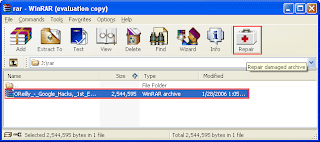
- Now a popup windows will appear which have two options, select “Treat the corrupt archive as ZIP" or “Treat the corrupt archive as RAR” depending which type of archive you want to repair.
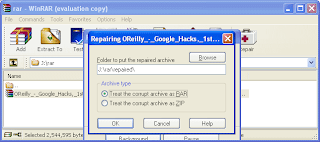
- You may get a "Suspicious Entry" pop-up. If so, select all. This may happen several times while repairing.
- Click on Close, after WinRAR has completed repairing the archive.
- To extract your file, highlight your new rebuilt archive.
- Next select Commands > Extract without confirmation
- The files will start extracting.
- The archived files will be extracted to the specified folder as the repaired archive.
Sunday, September 28, 2014
How to fix Error 6000 305 when opening a company file

If you are using Intuits QuickBooks for your accounting purpose then you may got this error message when you are trying to open your company file:
Error -6000, -305
If you are getting this error you might not be able to open your company file in any case.
Two main reasons behind this error:
1) Company file might be corruptted or damaged.
2) An issue with the QuickBooks networking setup
There are multiple solutions to resolve this error message:
1) First download and run the QuickBooks File Doctor. The tool will help you to detect QuickBooks data damage & repair it.
It the tool doesnt repair it, you have three more options to resolve this:
a. Restore from good backup copy of company file: If you have backup then this option is one of the best option to resolve this error. You can select this option from the main menu bar, select File and then Restore.
b. Verify Data and Rebuild Data help users to you find and repair damaged company file. You can select this option From the main menu bar, select File → Verify Company File. Users should be run weekly Verify Data as part of your routine file maintenance.
c. Restore all data using Auto Data Recovery option: Auto Data Recovery option helps users to recover your data. This option is available for QuickBooks 2010 R12 and QuickBooks 2011 R6 (Pro and Premier only).
d. Third Party QuickBooks Recovery Software: If these solution does not resolve the issue, you can use third party QuickBooks Recovery Software to recover corrupted .QBW files.
The methods that I’ve shared, will definitely resolve this error message. But my first recommendation is always restore corrupt company file from good backup copy.
Error -6000, -305
If you are getting this error you might not be able to open your company file in any case.
Two main reasons behind this error:
1) Company file might be corruptted or damaged.
2) An issue with the QuickBooks networking setup
There are multiple solutions to resolve this error message:
1) First download and run the QuickBooks File Doctor. The tool will help you to detect QuickBooks data damage & repair it.
It the tool doesnt repair it, you have three more options to resolve this:
a. Restore from good backup copy of company file: If you have backup then this option is one of the best option to resolve this error. You can select this option from the main menu bar, select File and then Restore.
b. Verify Data and Rebuild Data help users to you find and repair damaged company file. You can select this option From the main menu bar, select File → Verify Company File. Users should be run weekly Verify Data as part of your routine file maintenance.
c. Restore all data using Auto Data Recovery option: Auto Data Recovery option helps users to recover your data. This option is available for QuickBooks 2010 R12 and QuickBooks 2011 R6 (Pro and Premier only).
d. Third Party QuickBooks Recovery Software: If these solution does not resolve the issue, you can use third party QuickBooks Recovery Software to recover corrupted .QBW files.
The methods that I’ve shared, will definitely resolve this error message. But my first recommendation is always restore corrupt company file from good backup copy.
Subscribe to:
Posts (Atom)