Showing posts with label windows. Show all posts
Showing posts with label windows. Show all posts
Monday, October 6, 2014
Advanced English Dicionary AED for Windows 8

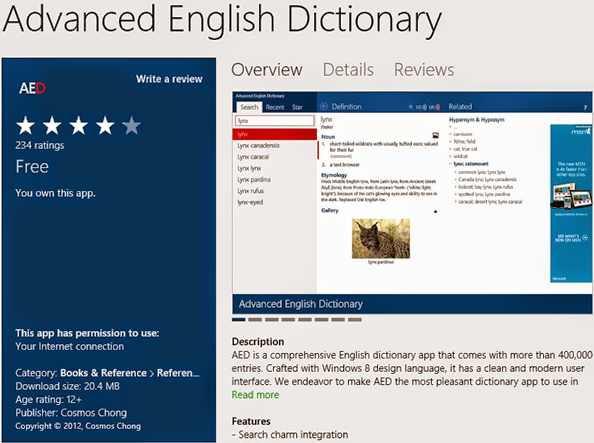
Advanced English Dictionary (AED) is the most pleasant dictionary app to use with Windows 8 with more than 4,00,000 entries. It has fast and superp user interface with no confusing option. Though its designed for English (US), you can listen both US & UK Pronunciation. Youll enjoy it for sure. :)
Features & Advantages:
- AED is completely free with Windows 8.
- Definition data stored locally (you can use offline).
- Pronunciation (UK & US) - Internet connection needed.
- Search through Windows Charm!
- Relevant details available for most of the words.
- Pictures are also avilable where necessary.
- Fast & Simple user interface.
Installation:
Maybe this is disappointing for the users who are not using Windows 8. Because this app is designed for Windows 8 and can only be downloaded from Windows Store. You should have access to Windows 8 store to download this app. And you may require Windows live account to download. Also make sure your Windows is activated and you can use the app store properly. Follow the procedure below:
- Connect the the internet.
- Press start and type Advanced English Dictionary.
- In the search location, choose Store.
- Now youll be redirected to Windows Store.
- Find AED from there. It will be in the Books & Reference category.
- Hit on the start button to start download (You may sign in to your hotmail or live ID).
- Wait for the app to be installed. Its 20 MB in size.
How to Use?
Its so easy to operate. A child below 10 years can easily use it. After installing the app, you will find it on your Start Tiles. Hit on it to open the app. Now type any word you want and hit enter.
You will find the details at the right. Even you may find related image at the bottom if available.
Press UK or US button at the top to listen to the pronunciation.
Remember, this is a free app. So ads by Microsoft will be displayed at the right of the screen. And it will consume your net. You can disconnect your net if youd like to stop those ads. But if your net is off, you cant listen the audio.
Stay with Marks PC Solution to get more interesting IT topics!

Tuesday, September 30, 2014
Using Linux to rescue Windows
You can use the Linux operating system to clean malware from Microsoft Windows on your PC. Even if you cannot boot Windows due to a viral infection, you can use Linux to rescue Windows. You need not install LInux, you need only create a Linux live CD, use it to boot your PC, and then install and run the ClamTk antivirus software to clean malware from the Windows partition or drive.
Xubuntu is a lean version of Ubuntu, a Linux distribution. To create an Xubuntu live CD, see the Creating an Xubuntu bootable disc procedure in Installing Xubuntu. You can then use the procedures below to install and run ClamTk through your Xubuntu live CD.
Read more »
Xubuntu is a lean version of Ubuntu, a Linux distribution. To create an Xubuntu live CD, see the Creating an Xubuntu bootable disc procedure in Installing Xubuntu. You can then use the procedures below to install and run ClamTk through your Xubuntu live CD.
Note: You need not use Xubuntu; procedures are similar for other Linux live CDs.
Installing ClamTk - To install ClamTk, do the following:
- If you have not already backed up all data on you PC, do so now. Caution: You will lose your data if you accidentally install Linux over your Windows operating system.
- Boot your Windows PC through an Xubuntu live CD, click on Try Xubuntu. Do not install it.
- Click the Applications Menu (the white mouse at the upper left corner of the screen) and then click Ubuntu Software Center to display its window.
- In the search field, type clamtk, select ClamTk, and then click Install.
- After ClamTk finishes installing, close the Ubunutu Software Center window, and then run ClamTk according to procedure below.
Running ClamTk - To run ClamTk, do the following:
- Install ClamTk according the procedure above.
- Click the Applications Menu (white mouse at upper left), select Accessories, and then click ClamTk to display its Virus Scannerwindow.
- Click Preferences, select the Scanning Preferences tab, select (check mark) Scan files beginning with a dot, select Scan all files and directories within a directory, and then close the Preferences window.
- Click Scan, click Recursive Scan, select the partition or drive that contains your Windows operating system, and then click OK to start the scan. Be patient; the scan takes a long time.
- After ClamTk completes its scan, it displays any threats it has found. Quarantine all threats.
- Shut down Xubuntu, remove its live CD, and then boot Windows.
C and Windows Task Scheduler is difficult
Apparently its not easy from C# program to interact with Windows Task Scheduler. From researching online, Windows Task Scheduler exposes COM APIs. However, from experience, using COM Apis from C# is a bit of a hassle, to say the least.
Easy solution:
Ironically, it looks much easier to use command-line tools
"at" and "schtasks".
http://technet.microsoft.com/en-us/library/cc738335(WS.10).aspx
One problem with "schtasks" is that when it creates task, it will mark it "Start the task only if the computer is on AC power". This setting is inconvenient because its impossible to use when laptop runs on battery.
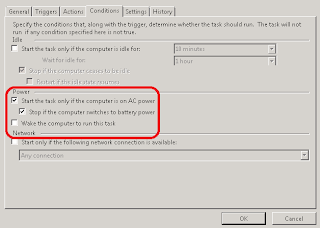
Probably "Start the task only if the computer is on AC power" is default Windows settings unfortunately. Luckily schtasks.exe accepts a task definition XML file where its possible to override that setting.
All you need to do is to specify "DisallowStartIfOnBatteries" tag in task definition XML file.
<DisallowStartIfOnBatteries>false</DisallowStartIfOnBatteries>
Heres a complete task schedule definition of PicturethrillTask.xml file from Picturethrill project http://picturethrill.codeplex.com/. This task allows Picturethrill.exe program to be executed every day and update users background image.
<?xml version="1.0" encoding="utf-16"?>
<Task version="1.2" xmlns="http://schemas.microsoft.com/windows/2004/02/mit/task">
<Triggers>
<CalendarTrigger>
<StartBoundary>2012-01-17T03:30:00</StartBoundary>
<Enabled>true</Enabled>
<ScheduleByDay>
<DaysInterval>1</DaysInterval>
</ScheduleByDay>
</CalendarTrigger>
</Triggers>
<Settings>
<MultipleInstancesPolicy>IgnoreNew</MultipleInstancesPolicy>
<DisallowStartIfOnBatteries>false</DisallowStartIfOnBatteries>
<StopIfGoingOnBatteries>false</StopIfGoingOnBatteries>
<AllowHardTerminate>true</AllowHardTerminate>
<StartWhenAvailable>true</StartWhenAvailable>
<RunOnlyIfNetworkAvailable>false</RunOnlyIfNetworkAvailable>
<IdleSettings>
<StopOnIdleEnd>true</StopOnIdleEnd>
<RestartOnIdle>false</RestartOnIdle>
</IdleSettings>
<AllowStartOnDemand>true</AllowStartOnDemand>
<Enabled>true</Enabled>
<Hidden>false</Hidden>
<RunOnlyIfIdle>false</RunOnlyIfIdle>
<WakeToRun>false</WakeToRun>
<ExecutionTimeLimit>PT1H</ExecutionTimeLimit>
<Priority>7</Priority>
</Settings>
<Actions Context="Author">
<Exec>
<Command>"C:Users
ikoAppDataLocalAristovPicturethrillPicturethrill.exe"</Command>
<Arguments>-q -n</Arguments>
</Exec>
</Actions>
</Task>
Read more »
Easy solution:
Ironically, it looks much easier to use command-line tools
"at" and "schtasks".
http://technet.microsoft.com/en-us/library/cc738335(WS.10).aspx
One problem with "schtasks" is that when it creates task, it will mark it "Start the task only if the computer is on AC power". This setting is inconvenient because its impossible to use when laptop runs on battery.
Probably "Start the task only if the computer is on AC power" is default Windows settings unfortunately. Luckily schtasks.exe accepts a task definition XML file where its possible to override that setting.
All you need to do is to specify "DisallowStartIfOnBatteries" tag in task definition XML file.
<DisallowStartIfOnBatteries>false</DisallowStartIfOnBatteries>
Heres a complete task schedule definition of PicturethrillTask.xml file from Picturethrill project http://picturethrill.codeplex.com/. This task allows Picturethrill.exe program to be executed every day and update users background image.
<?xml version="1.0" encoding="utf-16"?>
<Task version="1.2" xmlns="http://schemas.microsoft.com/windows/2004/02/mit/task">
<Triggers>
<CalendarTrigger>
<StartBoundary>2012-01-17T03:30:00</StartBoundary>
<Enabled>true</Enabled>
<ScheduleByDay>
<DaysInterval>1</DaysInterval>
</ScheduleByDay>
</CalendarTrigger>
</Triggers>
<Settings>
<MultipleInstancesPolicy>IgnoreNew</MultipleInstancesPolicy>
<DisallowStartIfOnBatteries>false</DisallowStartIfOnBatteries>
<StopIfGoingOnBatteries>false</StopIfGoingOnBatteries>
<AllowHardTerminate>true</AllowHardTerminate>
<StartWhenAvailable>true</StartWhenAvailable>
<RunOnlyIfNetworkAvailable>false</RunOnlyIfNetworkAvailable>
<IdleSettings>
<StopOnIdleEnd>true</StopOnIdleEnd>
<RestartOnIdle>false</RestartOnIdle>
</IdleSettings>
<AllowStartOnDemand>true</AllowStartOnDemand>
<Enabled>true</Enabled>
<Hidden>false</Hidden>
<RunOnlyIfIdle>false</RunOnlyIfIdle>
<WakeToRun>false</WakeToRun>
<ExecutionTimeLimit>PT1H</ExecutionTimeLimit>
<Priority>7</Priority>
</Settings>
<Actions Context="Author">
<Exec>
<Command>"C:Users
ikoAppDataLocalAristovPicturethrillPicturethrill.exe"</Command>
<Arguments>-q -n</Arguments>
</Exec>
</Actions>
</Task>
To create task using PicturethrillTask.xml file:
schtasks /create /TN Picturethrill /XML PicturethrillTask.xmlEnjoy, use schtasks from C# in your awesome software solutions :)
Monday, September 29, 2014
Essential Run Commands for Windows
Most of the windows users are familiar with run commands. We often use run for different purposes. There are a large number of run commands available. Even I myself dont know how much run commands are available. Most importantly, run commands are subject to change and manipulation. So better you go only for the essential commands only.
Here I am gonna suggest you some important commands that you often need to use:
Read more »
Here I am gonna suggest you some important commands that you often need to use:
Command | Result |
| appwiz.cpl | Add/Remove Programs |
| calc | Calculator |
| chkdsk | Check Disk Utility |
| control | Control Panel |
| cmd or cmd.exe | Command Prompt |
| Downloads | Sow download folder |
| dxdiag | Direct X Troubleshooter |
| cleanmgr | Disk Cleanup Utility |
| dfrgui | Defragment User Interface |
| diskmgmt.msc | Disk Management |
| diskpart | Disk Parmelonion Manager |
| desk.cpl | Display Properties |
| dpiscaling | DPI Scaling |
| control folders | Folders Properties |
| fonts | Manage fonts |
| gpedit.msc | Group Policy Editor |
| iexplore | Internet Explorer |
| firefox | Firefox |
| control keyboard | Keyboard Properties |
| main.cpl or control mouse | Mouse Properties |
| mspaint | Microsoft Paint |
| control netconnections ncpa.cpl | Network Connections |
| notepad | Notepad |
| osk | On Screen Keyboard |
| perfmon | Performance Monitor |
| powercfg.cpl | Power Configuration |
| regedit.exe | Registry Editor |
| msinfo32 | System Information |
| msconfig | System Configuration Utility |
| taskmgr | Task Manager |
| firewall.cpl | Windows Firewall |
| wf.msc | Windows Firewall with Advanced Security |
| write | Wordpad |
| wmplayer | Windows Media Player |
NB: Press Windows Key + R to activate run.
Remember: The above command is for windows vista, 7 and 8. Though most of the commands works fine on XP too. Few of them may not work on XP.
Sunday, September 28, 2014
How to Install or Uninstall Fonts in Windows

By default Windows Operating Systems include some essential fonts. Which you can use for any kind of writing. Though there are many English fonts but you may not have your local fonts. Or you may not have necessary stylish fonts installed with your Windows. In that case you can easily install new fonts if you need.

Those who already know how to install fonts may think- this post is quite unnecessary. But Ive to write because many of you cant install fonts. Im gonna show the easiest way to install new fonts on Windows PC. Hopefully this will work for all running versions of Windows.
- First go to the folder where your necessary fonts are stored.
- Select the fonts (Ctrl + A) and copy them by pressing Ctrl + C.
- Now Press Start + R to open Run, then type Fonts and hit Enter.
- Here you will see all the fonts installed on your PC.
- Press Ctrl + V to install the fonts you copied in the step 2.
- To uninstall a font, first select it and press Delete.
- Use the search options if you wanna find any font. Thats it.
Stay with Marks PC Solution to get more interesting IT topics!
Saturday, September 27, 2014
Windows 9 Preview is on the Way!!

Many Windows OS users havent tried Windows 8 yet. Even some of them are using Windows XP and thinking to swich to the Windows 7. And Microsoft is still passing a hard time to encourage users to use Windows 8. In this situation, Windows 9 (Threshold) Preview is gonna be released at the end of Septemeber, maybe 30th September. And to be honest, Im just waiting for it.
Because you know, I try all the preview versions of new Windows. Because Ive to inform my visitors about new way of using the Windows. And as soon as Im getting Windows 9 Preview, I will start exploring it.
So, Whats New?
Nobody can give you any straight answer. Because the changes will only be visible after the release. But information gets leaked easily. Ive searched information from different sites. So far, Ive got the following changes to be experienced in the next version of Windows -
- Windows Charm could be vanished. Many users get puzzled while turning off the PC from charm!
- Windows Icons could be changed a lot as you can see in the image.
- New Windows could be responsive to device types and screen sizes. It maybe capable of adapting itself with tablets, mobiles and desktop.
- Return of Start Menu with different look.
- Current start menu might take the form of mini start menu.
- More Metro Apps with reduced OS size
- Better support for high resolution screens
- Improved Power Management
These expected changes are just based on rumors. The facts will be revealed after the release of Windows 9 Preview. :)
What about the Final Version?
Maybe the final version of Windows 9 will be released within April 2015. And Microsoft is planning to provide Windows 9 for those users who will stop using Windows XP, Vista or 7 and upgrade this to Windows 9!
I cant wait for the New OS. :)
Stay with Marks PC Solution to get more interesting IT topics!
Subscribe to:
Posts (Atom)